 You can do amazing things with your trackpad: one of the most used/useful/smart things is surely the Scrolling: neither using those boring "elevators" on the sides of windows, nor using the small arrow to pull or push down the text in your page or finding the small zone of your trackpad that will allow you scroll your screen:
You can simply put two fingers (if one is already there, just put the other one down) and move them (just one or both, how you find best) up and down, or right and left, and the window/photo, ... will magically scroll in your direction ! Trying this feature will make you addicted to that.... believe me.
Sunday, October 19, 2008
Tip Tap on the mousepad (part2).

Tip Tap on the mousepad (part1).

So You come from the Windows world and still haven't get rid of that old right-click habit, is it ? me neither. Even if in Macosx the right click is not so often used, it's nevertheless sometimes cool to have it accesible somewhere:
a) in all systems you can RIGHT-CLICK/SECONDARY CLICK by clicking while holdind the CTRL key on the keyboard.
b) if you're using the trackpads on laptops you can also do that by tapping with two fingers (toghether) or holding two fingers on it and hitting the button. this must be enabled in system preferences > trackpad > secondary click.
Tuesday, July 1, 2008
Target mode?

There is a VERY simple way to access the internal drive of you mac without using a screwdriver: when you startup your mac, keep the "T" key pressed until the yellow firewire (jumping) logo appears. At that moment you can use a firewire cable (unless you own a macbook air) to connect your computer to another one that has firewire: then your original mac will appear as an extenal disk. Warning, all files will be accessible and writable at this stage; if you needed some more protection google for "open firmware set password".
Some place safe.
 You've sometimes needed a safe place to store some sensible information, could it be for work's purpouse or for some swiss bank account's password, isn't it ? There is a simple way to do it with some standard tools provided by MacOSX: "Disk utility". Fire it up and then choose "new image" than choose your (maximum) size, choose partition disk type, sparse disk image format and encryption enbled. This will create a password-protected usb-stick like drive when you double click on the "youdisk.sparseimage" file you just had created. (note: disk file will only occupy the space according to the files inside and not the maximum defined sparseimage size).
Friday, April 25, 2008
What about a nice slideshow ?

You certainly have the need to quickly show some photos/picture to someone or even yourself. I won't detail the "official" software used to manage pictures like the nice iphoto or the professional aperture, but I'd rather describe the quick way:
PREVIEW: you can select all the files you want to see, then right click and OPEN. Preview will open all the files in one window (switch between the pics with the up/down arrows), then use the VIEW menu and choose SLIDESHOW (COMMAND + SHIFT + F), a full screen overlay will appear and slideshow will start. If you move the mouse, some buttons will appear and even allow to see a "thumbnail" view of all the pics. Nice touch, ...Try it out.
QUICKLOOK: In Leopard (macosx 10.5) you can also use the functional "quicklook": select the same files (or only one) you want to see, the hit SPACE. A semi-transparent overlay will appear, then use the up/down arrows to cycle the pics, you can even put that in full screen or use the very same useful thumbnail view.
Easter Egg: using Quicklook viewing you can also press the ALT key and scroll the mouse ROLLER to zoom in, unpress ALT and pan around using the scroll wheel.
Rename tha files.

There is always the need to rename something in your everyday's life: it can be the latest file you've downloaded that has some cryptic name, the picture of your latest trip that you want more self-explanatory or the updated home expense sheet you have to change the date. So here 's some nice tips that are a bit more evolute than the F2 command available in windows.
- to rename a file you (after having it selected) just hit ENTER (yes, the big one) and you'll see a light-blue overlay over the text, then you just type the new name.
- From leopard on, the extension will be preserved (not in light-blue editeable) , which is nice. You might also overwrite it by mistake, you'll then be prompted for the new extension, but you still can choose (default) to hold the older one.
- During the light-blue phase you can also use the arrows to set the cursor position directly at the beginning or the end of the text to be edited.
Sunday, April 6, 2008
Where the **** is the DELETE key?

You must first now that there are two different type of deleting-key: there is the BACKSPACE that allows to delete the characters before the cursor, and there is also the DELETE key that erases the ones after the cursor. In PC's keyboards you'll find both, but in Mac's there is only the Backspace one. Don't be afraid: you still can do the DELETE action by pressing FN + BACKSPACE. Enjoy !
Sunday, March 30, 2008
HOW TO: Add + Clear Widgets.

You recently learned how to use the dashboard and its widgets (see last post). Apple provides some as default in the system, but you can:
a) add a widget by downloading one on the many sites. Once the file "calculator.widget" has been downloaded it can be installed by simply double-clicking on it. It will open in the dashboard asking if it has to be "keeped". Click ok and there it is.
You can also add some others by clicking on the "+" sign on the bottom-left corner of the screen. They are available in the system but not present in your actual dashboard.
b) delete the widgets by simply pressing the ALT-OPTION key while hovering with the mouse on the widget you want to close, then click on the black "X" on the upper-left corner of this widget.
What is the DASHBOARD ?

There is a lot of new things in your mac, and dashboard is one of them. In the past a small company developped the same concept under PC with the name of "Konfabulator". On april 2005, with MacosX tiger (10.4), apple introduced that same concept in their latest OS. In the meantime, on the PC side, Konfabulator's guys were bought by Yahoo who changed their name into "yahoo widgets". The concept is the following: have some small applications rapidly ready at the touch of a key (default is F12, but can be changed), see/consult/use them and then make them disappear quicky again. This is done on a opaque surface that appears/disappears over the desktop. Everyone of these small applications are named WIDGETS. Visit the official site or others to get more of them.
Friday, March 28, 2008
Are you in real trouble ?
 If you feel something is really strange with your mac, some peripherals are not working correctly, some disks might not be detected, amongst other things. So you better try this before throwing your mac out of the window (!): Shut Down you mac (if it refuses hold the power button off for a couple of seconds), then you HOLD PRESSED the following 4 keys (toghether):
COMMAND + OPTION + P + R, at the same time you (or someone that has still a free hand) press once the power button to switch on the mac. You hold the 4 keys until you ear the second "thoooing-mac-start-sound". Then you can rest your hands and wait the mac to start. Now the PRAM should have been resetted, and your problem might have gone away.
Wednesday, March 26, 2008
SBBOD, BSOD, OOTB

Sometimes acronyms can be quite kriptic, and if nobody is taking care of explaning that to you once, your might "rott in hell" until the death comes. I just used the "death" word in the previous sentence because the first two acronyms are related to the mortal sensation that you often experience when you see those symbols. Here they are:
SBBOD: The Spinning Beach Ball Of Death (Macosx) This is the simbol in which your normal arrow pointer transforms when an application (or the whole system) is "not responding". This can be temporarly (you just have to wait to see if it is) or persistent (and here you'll have to reboot your computer!).
BSOD: The Blue Screen Of Death (Windows)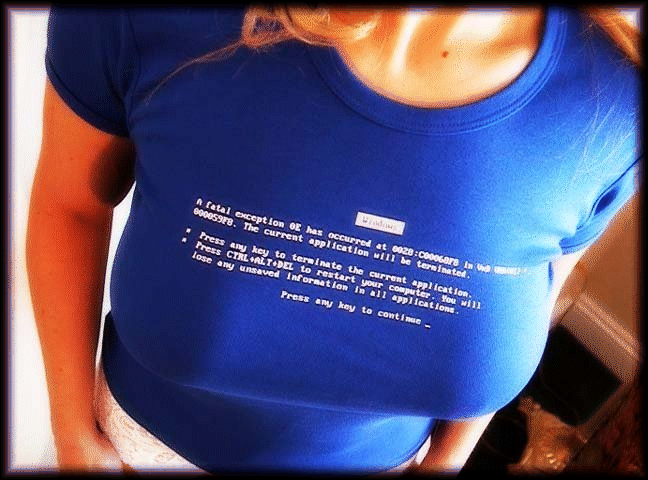 This is the typical blue screen that most of us have already experienced when; detaching a peripheral, unplugging and hard disk, lauching a game, trying to install windows, downloading a new driver or simply clicking somewhere on the screen.
OOTB: Out Of The Box (both) You can use this letters to name the Quasi-mystical "out of the box" experience your often (but not always!) have when you unbox your latest mac that your bought. You plug one or two cables, your switch it on and there you are. Setup is almost finished !
CONTROL + ALT + DELETE

That's perhaps the most famous key-combination in the whole world: Control + Alt +Delete. If you were used to that on PC's, you might wonder if there is an equivalent in the Mac World. Indeed there is: COMMAND (apple) + ALT (option) + ESC. Whenever you invoke this combination a window will appear, giving you the choice of "force-quit" the unresponsive (and the others too!) applications. Note: You can also "Force-quit" applications by holding the mouse/trakpad button on the dock icon of the unresponsive application.
Tuesday, January 29, 2008
Windows & Buttons

One of the most noticeable differences between the MS's Windows and MacOSX is the windows management. At first sight they look pretty similar: they have a title bar, they have three buttons and some resize utility: but let's find out the details:
a) CLOSE/MINIMIZE
- The red button allows to CLOSE the window (but not quit the program).
- The yellow button allows to MINIMIZE the window to the dock.
- The green button allows to OPTIMIZE the window (the exact meaning of it is still not so clear, but we can say that the window will be big enough to show its actual content)
 Note: there is (still) no direct way to make the window full-screen, even if some application do that by clicking on the green button.
b) RESIZE
- The only way to resize the windows is to use the bottom-right corner where the small "dragger" is present. There is no way to resize it elsewhere (i.e. on the borders like in PCs).

c) MOVE
- You can move a window by clicking on (and holding) the window's upper and lower grey bar and drag it around the screen as you like.

 d) MODE
- It is neither useful nor used, but is still present and mainly used to change the apperance of the install folders in the dmg files. By toggling it you can pass between the normal finder view (complete with the toolbar and the left-sourcelist) and the simplified one


Monday, January 28, 2008
Un&Zipping files

Everyone knows Winzip and it is sure that it works pretty well on a PC. The downside is that you have to buy it(even if some very competitive alternatives can be found freely on the net i.e opensource). On your new Mac you don't have to bother: some one has already done the job for you:
- You can already open & uncompress zipped files OOTB (out of the box=without installing anything else) by double clicking on them.
- You can create zip files by RIGHT-CLICKING on a file/folder and selecting "Create Archive"(Tiger) or "Compress item"(Leopard).
pretty cool, uh ?
Be careful ! Copying files...
 Some of you have already experienced the unexpected joy of having almost-surely lost a couple of hours during some file rearrangement. I'm sure (because I have to admint that I did!) that you hated during a tiny moment the Mac OS's Finder.
 Here's a tip that could have saved you some time. During file/folder rearrangement, you might see this warning window appearing: This happens when your are trying to move/copy a folder (new) to a location where another folder (old) with the same name already exist (and might also contain files).
If you clik on REPLACE: the folder "old" will be deleted (not even stored in the trash!) and completely replace with the new one. This means that the files inside the folder "old" will be lost! This is not happening on PC's where the content of the two folder is merged, and if two files have the same name a replace message will pop up to ask confirmation (in this case also the specific file is lost!).
Sunday, January 27, 2008
Copying, Moving, Shortcutting files.

Some of you have maybe already experienced the differences between your PC and Mac. regarding the file management tool. It is normally embedded in your OS: you have Explorer in windows or Finder in Mac OS X. But let's go more in detail on some points, because when you manage your files you can so different things:
A) COPY your files to another location:
 Explorer: by holding the CRTL key (or right clicking and selecting copy)
 Finder: by holding the ALT key (or automatically copied when coping to another disk)
B) MOVE your files to another location:
This is done by default when displacing one file across one same disk and no special shortcut is used.
C) create SHORTCUTS of file somewhere:

Explorer: by holding the ALT key (or right clicking and selecting create shortcut)
 Finder: by holding the ALT+COMMAND key.
Got the differences? ... so you can now enjoy to use again your good old habits without being annoyed by these smallish differences.
Thursday, January 24, 2008
Quick WHAT?

Quicksilver off course! This is the must-have application: Every time I go to someone else's mac I try to start quicksilver, and if I dont see the nice grey bezel appearing on the screen I feel pretty lost.
Basically Quicksilver is a "Launcher": just hit CTRL+ SPACE (you can then change this key's combination), this small interface pops up, then start typing what you want: applications, folders, documents, bookmarks, contacts, scripts, ... select it with the arrows and hit ENTER and BUM! you have what you want. (first typing selcts the object: left pane, and if you hit TAB you can type-in the action)
And it's FREE (and even Opensource) ! There are a lot of things that you can do with that nice little piece of software, but I won't explain them all in this post, so keep posted and come back to see some new Quicksilver hints.
Screen shots !

How many times in window you had wanted to grab a picture of something that's on your screen or just small portion of it, right ? and you maybe even got to have it on your clipboard, but then ? Paste it to Winword, ... sad. Just try out these combinations of keys and you'll find how is simple with your new mac:
For example, when you hit the SHIFT+COMMAND+4 keys you'll see appear a small cross-pointer (that even tells the pixel position and sizes of the portion grabbed). Just grab the wanted portion of your screen, or else hit SPACE and you can select directly a whole window. Admire then the resulted *png file on your desktop.
If you still are not happy with the file format (even if you could open it in preview.app and resave it in an other format) you can grab a copy of OnyX and change the default format.
Thursday, January 17, 2008
Shortcut's, the life is too short!
 You're probably not a "keyboard geek" as MS is not exactly the best shorctutter. Now you can express youself and take advantage of the power of the keyboard's shorcuts. Here are just the most common ones
COMMAND + W = close window
COMMAND + Q = Quit application
COMMAND + S = save file
COMMAND + N = new window
COMMAND + T = new tab (in web browsers)
COMMAND + L = select address bar in browsers
COMMAND + SHIFT + N = create a new folder
Moreover, if it's still not enough, you can create combinatons of keys to create specific user-defined triggers by going into the "System preferences>Keyboard &Mouse>Keyboard shortcuts"
and then define some system-wide or application specific shortcuts (ex: COMMAND+F in quicktime to go in full screen if not already supported).
TIP: when creating shortcut just type in the exact menu item name and then the keys combination, and that's all: int the field just type "Always on Top" and choose COMMAND+CTRL+T
Wednesday, January 16, 2008
Application Switcher

In order to switch between already opened application just hit Command/Apple + TAB. This is the Windows equivalent for ALT + TAB. Bu there is a couple of other tricks available:
... after having pressed COMMAND + TAB and you hold COMMAND pressed:
- Use the keyboard arrows to move to the right OR to the left.
- Directly use the mouse to select an app.
- drag&dropper a file onto the application icon to open it.
Keyboard keys on Mac
 You've certainly noticed that the keyboard does not exacly look the same (except for the international differences) and you are struggling to find your old good @, €, [] amongst others. here some quick tips:
LEGEND:
 This is the APPLE /COMMAND key (note: in the older keyboards this key had also an apple logo) and replaces as well the WINDOWS key as sometimes the CRTL key:
- COMMAND +X = cut
- COMMAND +C = copy
- COMMAND +V =paste
- COMMAND +Q =quit application
- COMMAND +W=close window (but not app)
- COMMAND +A =select all
- COMMAND +S =save
 This is the ALT / OPTION key and has similar behaviour as the ALT(ALT-GR) key on PCs: it can be also used toghether with other keys (tipically COMMAND)
- ALT+G = @
- ALT+E= €
- ALT+5=[
- ALT+6=]
- ALT+7=|
- ALT+N=~
 This is the CONTROL (CTRL) key and is not so used on the mac platform, but recently a little bit more, when using a Windows install via Bootcamp or Parallels/VMware.
Here are some interesting links:
Shortcuts (apple.com)
UPDATE: Friend and also blogger Enrique pointed me out that your can access all those special characters maps by selecting the "Keyboard Viewer". You can either fire it up by checkboxing the corresponding item in "Input menu" from "International" in System Preferences (and then access it from the menu bar) or typing "Key" if you have Quicksilver with the correct plugin & script installed.
Ok, let's start !

This is just the first moment that you have decided to buy a mac. Finally. This happened to me not such a long time ago, on the January the 13th 2005 (only three years !!). I decided to buy a Macmini for my living room, as mediacenter. It has pretty well done its job so far (it's still an old G4 guy) and has become more the housecenter. So here you are: your are still used to the "old good" Windows machine, but you decided to get rid of this habit and want to get to know better and better your new companion. Welcome to the real world.
Subscribe to:
Posts (Atom)
.jpg)

