
You recently learned how to use the dashboard and its widgets (see last post). Apple provides some as default in the system, but you can:
a) add a widget by downloading one on the many sites. Once the file "calculator.widget" has been downloaded it can be installed by simply double-clicking on it. It will open in the dashboard asking if it has to be "keeped". Click ok and there it is.
You can also add some others by clicking on the "+" sign on the bottom-left corner of the screen. They are available in the system but not present in your actual dashboard.
b) delete the widgets by simply pressing the ALT-OPTION key while hovering with the mouse on the widget you want to close, then click on the black "X" on the upper-left corner of this widget.
Sunday, March 30, 2008
HOW TO: Add + Clear Widgets.

What is the DASHBOARD ?

There is a lot of new things in your mac, and dashboard is one of them. In the past a small company developped the same concept under PC with the name of "Konfabulator". On april 2005, with MacosX tiger (10.4), apple introduced that same concept in their latest OS. In the meantime, on the PC side, Konfabulator's guys were bought by Yahoo who changed their name into "yahoo widgets". The concept is the following: have some small applications rapidly ready at the touch of a key (default is F12, but can be changed), see/consult/use them and then make them disappear quicky again. This is done on a opaque surface that appears/disappears over the desktop. Everyone of these small applications are named WIDGETS. Visit the official site or others to get more of them.
Friday, March 28, 2008
Are you in real trouble ?
 If you feel something is really strange with your mac, some peripherals are not working correctly, some disks might not be detected, amongst other things. So you better try this before throwing your mac out of the window (!): Shut Down you mac (if it refuses hold the power button off for a couple of seconds), then you HOLD PRESSED the following 4 keys (toghether):
COMMAND + OPTION + P + R, at the same time you (or someone that has still a free hand) press once the power button to switch on the mac. You hold the 4 keys until you ear the second "thoooing-mac-start-sound". Then you can rest your hands and wait the mac to start. Now the PRAM should have been resetted, and your problem might have gone away.
Wednesday, March 26, 2008
SBBOD, BSOD, OOTB

Sometimes acronyms can be quite kriptic, and if nobody is taking care of explaning that to you once, your might "rott in hell" until the death comes. I just used the "death" word in the previous sentence because the first two acronyms are related to the mortal sensation that you often experience when you see those symbols. Here they are:
SBBOD: The Spinning Beach Ball Of Death (Macosx) This is the simbol in which your normal arrow pointer transforms when an application (or the whole system) is "not responding". This can be temporarly (you just have to wait to see if it is) or persistent (and here you'll have to reboot your computer!).
BSOD: The Blue Screen Of Death (Windows)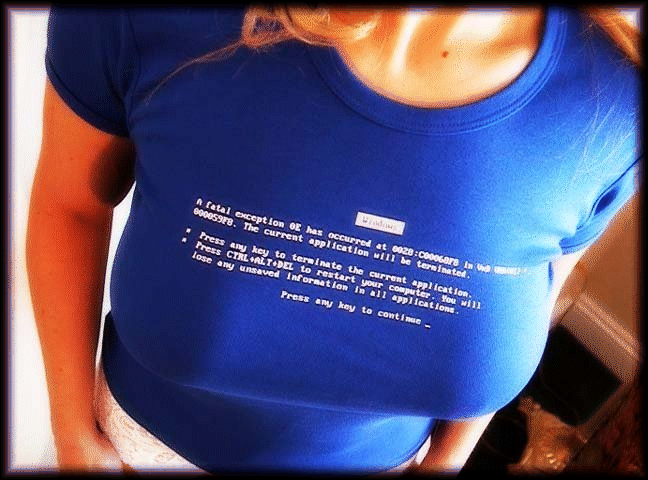 This is the typical blue screen that most of us have already experienced when; detaching a peripheral, unplugging and hard disk, lauching a game, trying to install windows, downloading a new driver or simply clicking somewhere on the screen.
OOTB: Out Of The Box (both) You can use this letters to name the Quasi-mystical "out of the box" experience your often (but not always!) have when you unbox your latest mac that your bought. You plug one or two cables, your switch it on and there you are. Setup is almost finished !
CONTROL + ALT + DELETE

That's perhaps the most famous key-combination in the whole world: Control + Alt +Delete. If you were used to that on PC's, you might wonder if there is an equivalent in the Mac World. Indeed there is: COMMAND (apple) + ALT (option) + ESC. Whenever you invoke this combination a window will appear, giving you the choice of "force-quit" the unresponsive (and the others too!) applications. Note: You can also "Force-quit" applications by holding the mouse/trakpad button on the dock icon of the unresponsive application.
.jpg)
